
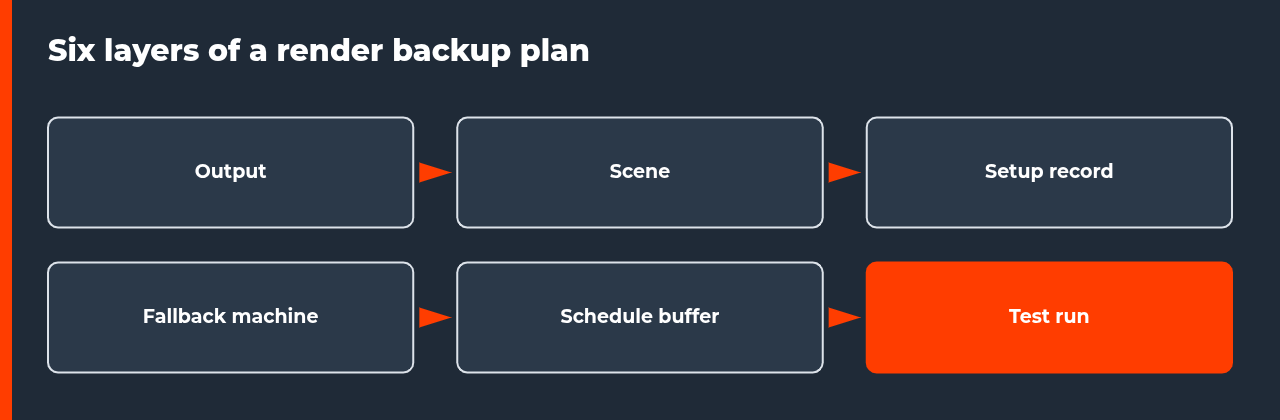
A render backup plan in six layers: output, scene, setup record, fallback machine, schedule buffer and a test you run before the deadline.
Quick answer
A render backup plan has six layers: save frames as an image sequence, keep scene versions in more than one place, write down your setup, know your fallback machine, leave a schedule buffer and run a drill before the deadline.
RENDER BACKUP PLAN | IMAGE SEQUENCE | SCENE VERSIONS | SETUP RECORD | FALLBACK MACHINE
- Output layer: image sequences keep every finished frame.
- Scene layer: versions in two places beat any single copy.
- Record layer: a written setup lets anyone recreate your machine.
- Fallback layer: decide in advance where you would render.
- Test layer: a drill finds gaps while there is still time.
Most missed deadlines are not caused by a hard problem. They are caused by an ordinary failure with no plan behind it: a dead drive, a crashed session, a corrupt video file. A render backup plan is the small amount of preparation that turns those failures into an hour of delay instead of a lost delivery.
This guide builds that plan in six layers. It belongs to the cluster around local vs cloud rendering for animators. If a failure has already happened, read the recovery steps in what to do when your computer dies before a deadline, and for moving work between machines, see the migration plan.
What a render backup plan has to cover
Failures come in a few kinds: the machine dies, the software crashes, the power goes out, the file is corrupted or a person makes a mistake. A good plan does not predict which one will happen. It makes sure that whichever it is, you lose minutes and not days. Each layer below answers one or more of those failures.
| Failure | What you lose without a plan | Layer that covers it |
|---|---|---|
| Machine dies | Everything on that machine | Fallback machine and copies elsewhere |
| Software crashes | Unsaved scene changes | Autosave and versions |
| Power cut mid-render | A video file or the whole job | Image sequence output |
| Corrupt scene file | Your latest work | Versions in more than one place |
| Setup forgotten | Time guessing versions | Written setup record |
Six layers of a render backup plan
- Output. Render to an image sequence. The Blender manual advises against rendering directly to a video format because a mid-render problem can leave the file unplayable, and says a sequence lets you restart from the failed frame.
- Scene. Save versions at milestones and keep copies in more than one place. Auto save is a safety net, not a backup.
- Setup record. Write down software, engine and plugin versions, the scene path, output settings and cache files.
- Fallback machine. Decide in advance where you would render if your machine failed, and check it supports your software.
- Schedule buffer. Leave enough time to re-render the job on the fallback machine, including setup.
- Drill. Practise the switch once, on a quiet day.
Output and scene: the two layers that protect work
The output layer is the highest return for the least effort. An image sequence turns a render into hundreds of independent files, so no single failure ruins them all. The manual also describes Overwrite and Placeholders options. It suggests disabling Overwrite and enabling Placeholders so several machines can share one output folder, which also protects finished frames from being replaced by a restart. See the Blender output properties manual.
The scene layer is about versions. The Blender manual describes recovery from the last session and from the most recent auto save, and says only one auto-saved file is kept per project. That is a safety net. A real backup is a version you saved on purpose and copied somewhere else. Keep at least two copies in different places, so one failed drive does not remove them all.
| Habit | Protects against | Cost |
|---|---|---|
| Image sequence output | Lost video, power cut, mid-render crash | None |
| Overwrite off, placeholders on | Restart replacing finished frames | One setting |
| Versions at each milestone | Corrupt or wrong scene | Disk space |
| Copies in two places | Single drive failure | A second drive or service |
Setup record and fallback machine
The setup record is a short text file: software and version, render engine and version, each plugin and version, scene path, output settings and cache files. It takes ten minutes to write and saves hours when you must rebuild your environment elsewhere. Keep it with the scene, and update it when you change versions.
The fallback machine can be a colleague’s computer, a spare, a rented remote machine or a render farm. The best fallback is the one you have already tested. Autodesk’s guidance says every plug-in DLL a job uses must be installed on each machine that renders it, so a fallback with a different plugin set is not a fallback. Match it before you need it.
| Item | Example field | Why |
|---|---|---|
| Software | Name, version | Frames can differ between versions |
| Render engine | Name, version | Settings change between versions |
| Plugins | Name, version | Missing plugins drop objects |
| Files | Scene path, caches, textures | Needed to reopen the scene |
| Output | Format, range, naming | Needed to continue a sequence |
Common mistakes in a render backup plan
The most common mistake is a backup that has never been opened. A copy you cannot restore is not a backup. The second is a fallback machine with different software, so frames differ or plugins fail. The third is a schedule with no buffer, which turns every small failure into a missed delivery. The fourth is rendering straight to a video file, where one failure can ruin everything.
Fix them in that order. Open a backup once. Match the fallback machine to your setup record. Add the buffer to your plan on day one. Switch to image sequences before your next project starts. Each fix takes minutes, and together they cover most of the failures that actually happen.
Schedule buffer and drill
A buffer is the time you need to render the whole job again elsewhere. Estimate it from your frame count and your time per frame, then add setup time for the fallback. If you cannot fit a full re-render before delivery, you have no real backup, only a hope. Do the arithmetic on day one of the project, not on the last day.
Then run the drill. Open your backed-up scene on the fallback machine, install the recorded versions and render a frame you already have. If the new frame matches the old one, the plan works. If it does not, you have found a gap while there is still time to fix it. For the break-even question of owning or renting extra capacity, see the local vs cloud rendering pillar.
FAQ: render backup plan
What is a render backup plan?
It is a short, written set of habits and resources that keeps a deadline safe if a render fails. It covers where finished frames are saved, how scene versions are kept, which software versions you use, where you would render if your machine failed and how much spare time you build into the schedule. It is cheap to prepare and expensive to lack.
Why render image sequences instead of video?
The Blender manual advises against rendering directly to a video format because a problem mid-render can leave the file unplayable and force a full re-render. An image sequence keeps every finished frame as its own file, so you can restart from the failed frame and encode the video afterwards from the finished frames.
How do I stop a restart from overwriting finished frames?
The Blender manual describes an Overwrite option and a Placeholders option. With Overwrite disabled, existing files are not replaced, and Placeholders create empty files while rendering, which lets several machines share one output folder. Check how your own software handles existing files before you rely on it.
How often should I back up my scene?
Save versions at every milestone and before any risky change. Keep copies in more than one place, so a single failed drive does not remove all of them. Blender also keeps one auto-saved file per project and a session file written at exit, but the manual says those do not replace saving your own versions.
What should my written setup record contain?
The software name and version, the render engine and version, every plugin and its version, the scene path, the output format and settings, and any cache files. With that record, a colleague or a rented machine can recreate your setup without guessing, and you can check that a replacement matches before you render the whole range.
How much spare time should I leave before a deadline?
Enough to render the whole job again on a different machine, plus the time to set that machine up. Estimate it from your own render hours per frame and frame count, then add setup time. A plan with no buffer fails the first time anything goes wrong.
How do I test my render backup plan?
Run a drill. Pretend your main machine is gone, open your backed-up scene on the fallback machine, install the recorded versions and render a frame you already have. If it matches, the plan works. If it does not, you found the gap while you still have time to fix it.

COMMENTS