
Local vs cloud rendering for animators: compare costs, GPU memory limits and deadlines, and run a break-even model with your own numbers.
Quick answer
Local vs cloud rendering comes down to four numbers for an animator: render hours per month, scene memory, deadline peaks and the fixed cost of owning hardware. Steady heavy use favours a local machine, while uneven or very large jobs favour rented cloud capacity, and many animators combine both.
LOCAL VS CLOUD RENDERING | BREAK-EVEN | GPU MEMORY | DEADLINE PEAKS | HYBRID WORKFLOW
- Break-even is a formula: fixed local cost divided by cloud rate minus local running cost.
- Memory can decide first: a scene that does not fit in GPU memory changes the options.
- Peaks favour cloud: renting capacity for a deadline avoids idle hardware.
- Steady load favours local: predictable hours spread the hardware cost thinly.
- Test before you move: compare a few frames in both environments first.
Every animator reaches the same question sooner or later: keep buying faster hardware, or send the heavy jobs somewhere else. The honest answer to local vs cloud rendering is that it depends on your workload, and you can measure that workload instead of guessing.
This guide gives you the differences, the hardware limits that matter, and a break-even model you can run with your own prices. It does not recommend a provider. For a provider comparison, see the 2026 render farm comparison, and for how a farm job works end to end, see the animation render farm guide.
Local vs cloud rendering: what actually differs
Local rendering means your own workstation does the work. Cloud rendering means you rent computing time from a provider, either as a managed farm that runs your job or as a remote machine you control. The service model matters, and the IaaS vs SaaS comparison explains why. Here the comparison stays at the level of the decision.
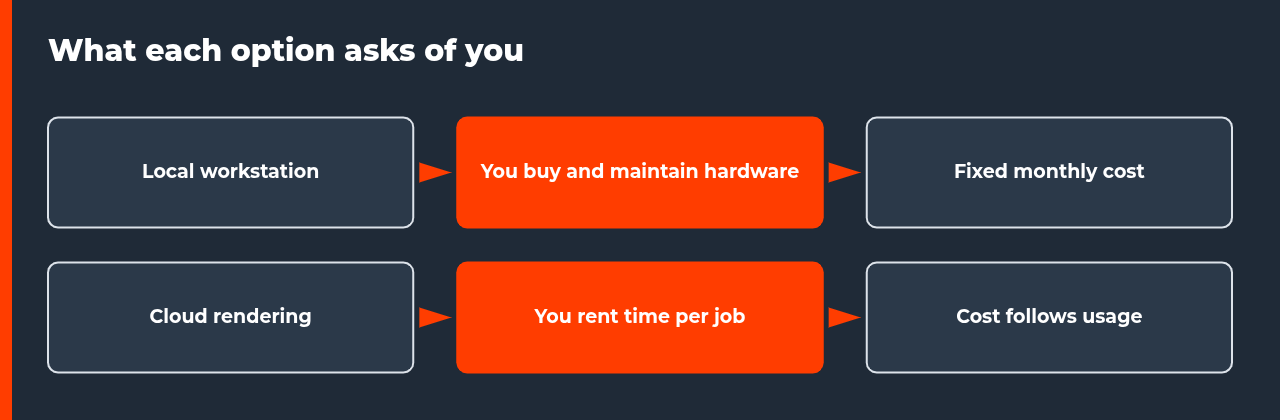
| Factor | Local workstation | Cloud rendering |
|---|---|---|
| Cost shape | Fixed: purchase, power, upkeep | Variable: pay for hours used |
| Capacity | One machine, or what you own | Scales with the job |
| Idle time | You pay even when idle | Cost stops when the job ends |
| Transfer | None, files stay local | Upload scenes, download frames |
| Control | Full control of software | Depends on the service model |
| Memory limit | Your GPU, fixed until you upgrade | Depends on the hardware you rent |
The table describes general tendencies, not a promise from any provider. The details of transfer time, licences and software support differ by service, so check them before you commit a project.
Hardware limits that can decide local vs cloud rendering
Memory is the limit that surprises people. The Blender Cycles GPU rendering manual states that a GPU can only use the memory on the card, and running out produces an out of memory error. It adds that for CUDA, OptiX, HIP and Metal devices Blender will try to use system memory when GPU memory is full, with a performance cost, and that each GPU can usually only access its own memory, except NVIDIA GPUs linked with NVLink.
Engines handle this differently. Maxon’s Redshift documentation says Redshift splits free GPU memory among its modules each frame, uses 90% of free memory by default, and supports out-of-core texturing and geometry. It also says that if the irradiance cache or point cloud does not fit in VRAM, the frame is aborted. See the Redshift memory documentation.
Power and cooling matter for the local option. NVIDIA lists the GeForce RTX 5090 with 32 GB of GDDR7 memory and a total graphics power of 575 W, and requires a 1000 W system power rating on its test configuration; see the NVIDIA RTX 5090 page. A card like this has to be powered, cooled and housed. If your scenes need more memory than your card has, read what to do when scene memory exceeds your VRAM.
| Source | Documented fact | Effect on the decision |
|---|---|---|
| Blender manual | GPU uses only its own memory; system memory fallback costs performance | Check scene memory before choosing |
| Maxon Redshift | Splits VRAM per frame; frame aborts if irradiance data does not fit | Reduce quality settings or add memory |
| NVIDIA RTX 5090 | 32 GB GDDR7; 575 W total graphics power | Budget for power and cooling locally |
| Blender manual | NVLink lets some NVIDIA GPUs share memory | Needs matched hardware |
A break-even model you can run yourself
Break-even asks one question: how many render hours per month make owning cheaper than renting? Use this formula. Let F be your fixed monthly local cost, which is hardware price divided by months of expected use plus monthly upkeep. Let v be your local running cost per hour, mainly electricity. Let c be the cloud price per hour for equivalent hardware. Then break-even hours per month equal F divided by the result of c minus v.
The example below uses placeholder numbers to show the method, not real prices from any provider. Replace them with your own. Assume a 4,000 dollar workstation used for 36 months, 20 dollars of monthly upkeep, 0.9 kW system draw at 0.15 dollars per kWh, and a cloud rate of 2.50 dollars per hour. Then F is about 131 dollars, v is about 0.135 dollars, and break-even is about 55 render hours per month.
| Render hours per month | Local cost | Cloud cost | Cheaper option |
|---|---|---|---|
| 30 | $135 | $75 | Cloud |
| 55 | $139 | $138 | About equal |
| 100 | $145 | $250 | Local |
The model leaves out three things that can matter more than the totals. First, parallelism: a cloud job can split frames across machines, so delivery time may fall even when cost does not. Second, idle time: see cloud rendering idle cost for how paying for unused rented time changes the picture. Third, hidden local costs such as downtime and upgrades, covered in hidden costs of rendering locally.
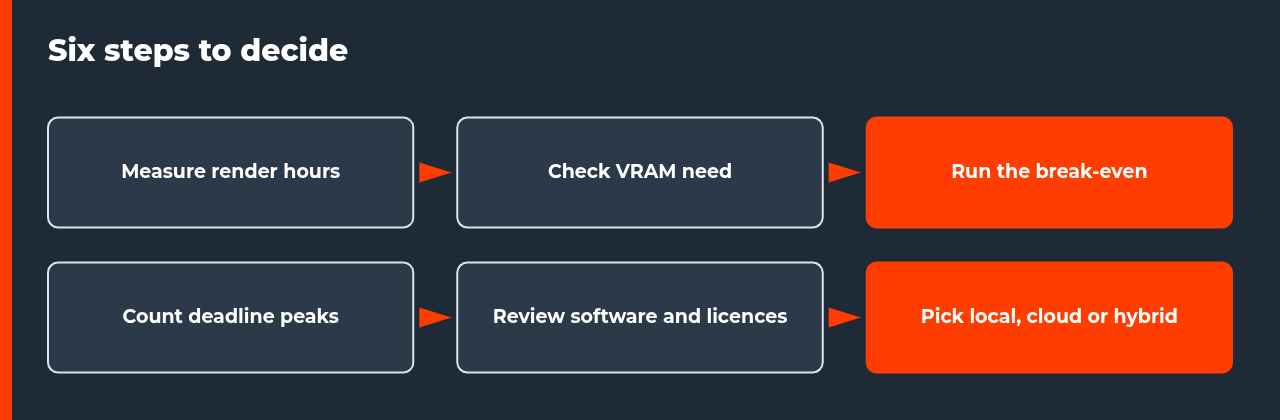
Six steps to decide for your own workload
- Measure real render hours. Add up the hours your last three projects actually took, including re-renders.
- Check scene memory. Find the peak GPU memory of your heaviest scene and compare it with your card.
- Count deadline peaks. Note how often you need more capacity than one machine can give in the time available.
- Run the break-even. Use the formula with your own hardware, power and cloud prices.
- Check software and licences. Confirm that your plugins, versions and licences work in the cloud option you consider.
- Test before committing. Render a few frames both ways and compare them before moving a project.
Transfer time and data: the cost that never appears on an invoice
Cloud rendering needs your project to travel to the machine that renders it, and the frames to travel back. Local rendering has no such step. The delay is simple arithmetic: file size in gigabits divided by your upload speed in gigabits per second. A 50 GB project is 400 gigabits. On a 100 megabit per second connection, which is 0.1 gigabits per second, the upload alone takes about 4,000 seconds, or roughly 67 minutes, assuming the connection runs at full speed the whole time.
That figure is a worked example with assumed numbers, not a measurement of any connection or provider. Real speeds vary, and a farm may accept files in a way that lets you start before the whole upload finishes. The point is to run the calculation with your own project size and your own upload speed before a deadline, not during it. For slow connections, see render farm slow upload for large projects.
| Project size | Gigabits | Upload time at full speed |
|---|---|---|
| 5 GB | 40 | About 7 minutes |
| 20 GB | 160 | About 27 minutes |
| 50 GB | 400 | About 67 minutes |
| 100 GB | 800 | About 133 minutes |
Which kind of animator are you?
The right answer to local vs cloud rendering changes with how you work. A freelancer with steady weekly renders is in a different position from a studio that renders in bursts before each delivery. The table below applies the break-even logic and the memory and transfer limits to four common profiles. It is a reading of the reasoning in this guide, not a rule, so check each row against your own numbers.
| Profile | Typical pattern | Tends to favour | Main check |
|---|---|---|---|
| Freelancer, steady hours | Similar render hours every month | Local, if the scene fits memory | Break-even hours |
| Studio with delivery peaks | Idle most weeks, heavy before deadlines | Cloud or hybrid | Parallel capacity and transfer time |
| Laptop-only artist | Limited power, heat and memory | Cloud for final frames | Version match with the farm |
| Large-scene specialist | Scenes near or above GPU memory | Depends on available memory | Peak scene memory |
When each option tends to win
Local tends to win with steady, heavy use, scenes that fit your GPU memory, and little tolerance for upload time. It also suits teams that cannot move files off their own network. Cloud tends to win with uneven workloads, rare very large scenes, and deadline spikes that would leave bought hardware idle the rest of the month. These are tendencies, not rules, so check them against the numbers from your own projects.
If your current GPU is the worry, upgrade vs rent for an old GPU and budget GPU vs render farm cover the cases in more detail. If faster hardware did not shorten your renders, check whether the GPU was the bottleneck at all: when faster hardware does not speed up renders. New to farms? Start with render farms for beginners.
Power, noise and heat at home
Running your own machine also means running it in your own room. NVIDIA lists the GeForce RTX 5090 at a total graphics power of 575 W. At an assumed tariff of 0.15 dollars per kWh and 100 render hours a month, the card alone would draw about 57.5 kWh, or roughly 8.6 dollars of electricity, before the rest of the system and before cooling. Those are assumptions for the arithmetic, not a bill from any real setup.
Money is the smaller issue for many people. A machine rendering for hours produces heat and fan noise in the room you work in, and it often cannot be used for much else while it renders. If that is your situation, your options include sending only the final frames elsewhere, or limiting what the local machine does while you work. Both are covered in the follow-up guides on this site once they are published, and both feed back into the break-even model above through the value of your own time.
Questions to answer before you decide
- How many render hours did my last three projects take, including re-renders?
- Does my heaviest scene fit in GPU memory, and what happens if it does not?
- How long would a full upload take on my connection?
- How many times a year do I need more capacity than one machine gives me?
- Which plugins and licences would have to work in the cloud option?
- What does it cost me, in time, when my own machine is busy or broken?
The hybrid pattern
Many animators work locally and send only the final sequence to the cloud. This keeps day-to-day iteration free of upload time and uses rented capacity only when a deadline needs it. The condition is a matching environment: the same software version, plugins and settings on both sides. Without that match, frames can differ between machines. Test a few frames both ways whenever you update software.
FAQ: local vs cloud rendering
Is local vs cloud rendering mainly a cost question?
Cost matters, but it is not the only factor. Hardware limits such as GPU memory, deadline peaks, software licences and file transfer time also decide which option works. A cheaper option that cannot hold your scene in memory, or that misses a delivery date, is not cheaper. Run the break-even calculation first, then check these constraints against your own projects.
When does local rendering make more sense than the cloud?
Local rendering tends to win when you render many hours every month at a steady rate, your scenes fit in your GPU memory, and you can absorb the hardware cost. It also avoids upload time and keeps files on your own machine. If your workload is steady and predictable, a fixed monthly cost is easier to plan than usage-based bills.
When does cloud rendering make more sense than local?
Cloud rendering tends to win when your workload is uneven, with long idle gaps and short deadline spikes, or when a scene needs more GPU memory than you own. Renting capacity for a spike avoids buying hardware you would leave idle. It also lets frames render in parallel on several machines, which shortens delivery time for animation sequences.
How do I calculate the break-even point?
Add your fixed monthly local cost, meaning hardware cost divided by months of use plus maintenance. Divide it by the difference between the cloud hourly rate and your local running cost per hour, mainly electricity. The result is the number of render hours per month above which local becomes cheaper. Use your own prices, since rates and tariffs vary.
Does my GPU memory decide which option I need?
Often, yes. The Blender manual states that a GPU can only use the memory on the card, and running out causes an out of memory error. Some engines can use system memory or out-of-core methods, with a performance cost. Check your scene memory use first, because a scene that does not fit may need different hardware, whichever option you choose.
Can I mix local and cloud rendering?
Yes, and many animators do. A common pattern is to work and test locally, then send the final sequence to the cloud when a deadline needs more capacity than one machine provides. The condition is that both environments match in software version, plugins and render settings, otherwise frames can differ between machines.
What should I test before moving a project to the cloud?
Render a few frames locally and the same frames in the cloud, then compare them. Check plugin support, software versions, texture paths and colour management. A small test costs little and finds mismatches before they affect a whole sequence. Keep the results so you can repeat the test whenever you update software.

COMMENTS