
Plugin not working on render farm? Learn why plugins run locally but fail on SaaS and IaaS farms, and run a seven-step checklist before you render.
Quick answer
A plugin not working on render farm problem almost always means the plugin, its version or its licence exists on your workstation but not on the machine that renders the frame. The fix depends on the service model: a SaaS farm installs a fixed plugin set, while an IaaS machine lets you install your own.
PLUGIN NOT WORKING ON RENDER FARM | SAAS VS IAAS | MISSING DLL | VERSION MATCH | LICENCE
- Model decides control: on SaaS the provider chooses what is installed, on IaaS you do.
- Version must match: plugin build and host application year both count.
- Ask before upload: published farm documentation points to support confirmation for unlisted plugins.
- Bake when possible: caches and proxies remove the plugin dependency.
- Test three frames: first, middle and last frame catch most late failures.
You press render locally and the frame looks right. You send the same scene to a cloud farm and the plugin objects are missing, the look is wrong or the job stops. This is the classic plugin not working on render farm situation, and it is rarely a bug in the plugin itself. It is a difference between two machines, and the difference sits in what each service model lets you control.
This guide explains why the gap appears, what published farm documentation says about plugins, and a checklist you can run before you spend render credits. It treats SaaS and IaaS as different services, as defined by NIST, because the correct fix is different for each.
Why a plugin not working on render farm happens
A render node is a separate computer with its own operating system, host application and plugin folder. Your scene file only stores references to plugin features. If the node cannot load the plugin that created those features, the host either skips them with a warning or stops the job. Autodesk’s network rendering guide states that a server lacking needed files cannot render the job, and that every plug-in DLL the job uses must be installed on each server that renders it. By default Backburner reports missing DLLs, maps and XRefs as warnings and continues, which is why a frame can finish with objects silently absent. See the Autodesk network rendering troubleshooting guide.
Who can fix the gap depends on the service model. NIST describes SaaS as using the provider’s applications with only limited user-specific configuration, and IaaS as provisioning resources where the consumer controls operating systems, storage and deployed applications (see NIST SP 800-145). Applied to rendering, that is the whole story of plugins.
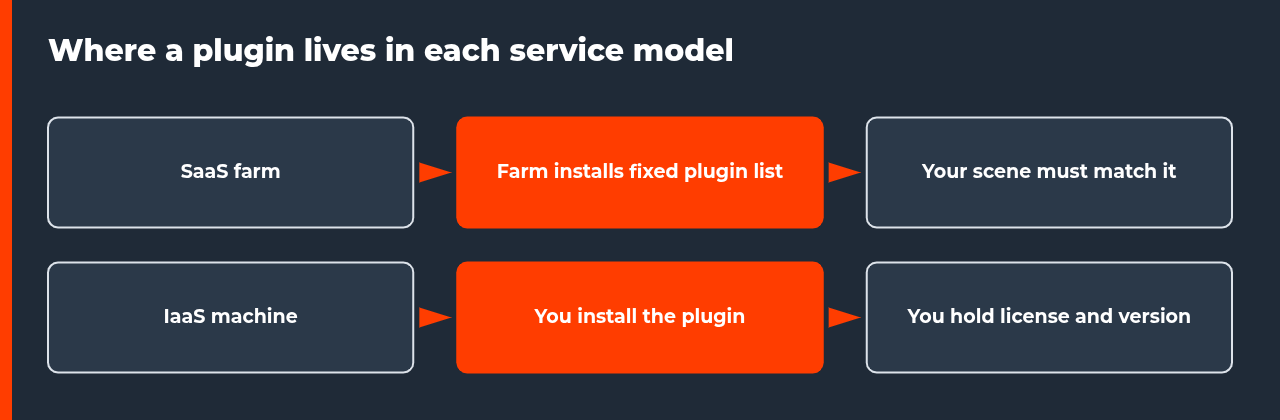
| Question | SaaS render farm | IaaS remote machine |
|---|---|---|
| Who installs plugins | The provider, from a fixed list | You, on your own machine |
| Who matches versions | Provider and you, before upload | You, entirely |
| Licence handling | Depends on plugin and farm policy | You supply and activate it |
| Unlisted plugin | Ask support to confirm or provision | Install it yourself |
| Main risk | Plugin missing or different build | Setup time and licence cost |
| Best for | Standard plugin sets, many frames | Rare or custom plugins |
This comparison is an interpretation of the NIST definitions applied to rendering, not a statement about any single provider. The details differ by farm, which is why the next section looks at what farms publish. For the wider model difference, read IaaS vs SaaS render farms.
What published farm documentation says about plugins
Two competing SaaS farms show the pattern clearly. SuperRenders Farm publishes a supported-versions matrix that lists plugin rows with specific versions and host-year ranges, and its page says it will provision items it does not already have installed. Its page also marks many plugins as needing confirmation first, and states that third-party After Effects plugins are provisioned on request rather than installed by default. Rebus Farm lists about 48 plugins for 3ds Max and tells users to contact support when a plugin is not listed. Its Farminizer submission plugin includes a SmartCheck scan that flags missing textures and plugin conflicts before upload.
| Source | What it documents | What it means for you |
|---|---|---|
| Autodesk guide | Plug-in DLLs must exist on each render server | Local install does not count |
| SuperRenders Farm | Version and host-year ranges per plugin, provisioning on request, matrix last verified 2026-07-08 | Check your exact build against the row |
| Rebus Farm | About 48 listed 3ds Max plugins, contact support if unlisted, SmartCheck before upload | Run the pre-upload scan, then ask |
| NIST SP 800-145 | SaaS limits user control, IaaS gives control of deployed applications | Pick the model that fits the plugin |
Because these lists change, the practical lesson is to treat any supported-plugin page as a starting point. Match your exact plugin build and host year, then confirm with support in writing. See the sources at the end of this article for both pages: SuperRenders supported versions and Rebus Farm 3ds Max page.
Seven checks when a plugin fails on the render farm
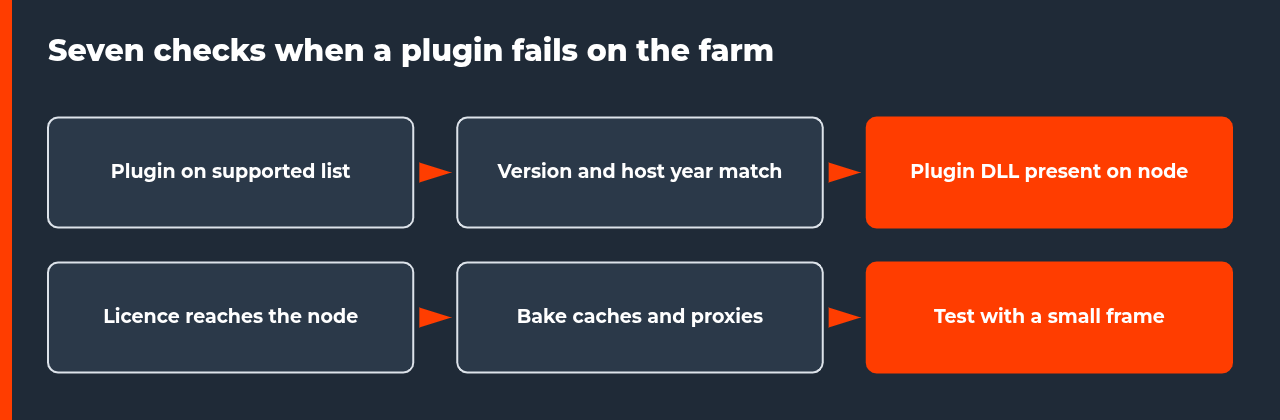
Run these in order. Each step removes one cause of a plugin not working on render farm nodes, and the first three are free to check before you upload anything.
- Check the supported list. Find your plugin name on the farm page. If it is missing, ask support before uploading.
- Match the version. Record the exact plugin build and the host application year. Confirm the farm uses the same or an accepted one.
- Confirm the render engine pair. A plugin may be supported with one engine and not another, so name both when you ask.
- Check the licence. Ask whether the plugin needs a licence that reaches the node. See software licences on render farms.
- Bake dependent data. Write simulation caches, scattered geometry and proxies to disk and include them in the upload.
- Collect all assets. Upload cache sequences completely and use relative paths so the node can find them.
- Test three frames. Render the first, middle and last frame and compare them with your local frames before the full sequence.
Common failure patterns and likely causes
| Symptom | Likely cause | Next step |
|---|---|---|
| Objects missing in the frame | Plugin not installed on the node | Check the job log for missing DLL lines |
| Look differs from local | Different plugin build or default setting | Compare version numbers and settings |
| Job stops at load | Host year or plugin build unsupported | Ask support for the accepted combination |
| Only some frames fail | Cache sequence incomplete or licence limit | Verify uploaded caches and licence seats |
| Warning but frame finishes | Missing DLL reported as warning | Treat warnings as errors during tests |
The last row matters most. Because missing plug-ins can be reported as warnings, a finished job is not proof of a correct job. Autodesk documents an environment variable that makes Backburner stop on these conditions, which is useful on a machine you control. On a SaaS farm, compare the first frames against your local result before approving the full run. For a deeper look at mismatches in general, see render farm version compatibility errors.
Bake what the farm cannot run
Baking turns plugin work into plain data the host application can read without the plugin. SuperRenders documents this approach in its own policy: Houdini simulation caches are baked to disk and uploaded rather than re-simulated, and third-party Blender add-ons must be baked to standard Blender data first, otherwise you contact the farm. The same idea applies elsewhere. Scatter output can become instanced geometry, particle simulations can become cache files, and procedural materials can become texture maps.
Baking has costs. Caches can be large, uploads take time, and you lose the ability to tweak the effect on the farm. Decide before you bake whether the effect is final. If it is not, you may be better off on a machine where the plugin runs live, which leads to the second option.
When to move from SaaS to an IaaS machine
If your plugin is rare, custom or tied to a licence the farm cannot use, a remote machine where you install software yourself can be the cleaner route. You then own the setup: install the host application, the plugin at the exact build you use, the licence and the render engine. This is more work per project, but it removes the supported-list question entirely. Weigh that against a SaaS farm when your plugin set is standard and the job is many frames. The animation render farm guide covers how the full workflow fits together, and the setup checklist covers failures that appear before rendering starts.
For provider comparisons, use the 2026 render farm comparison and check each provider’s plugin page yourself, since policies differ.
FAQ: plugin not working on render farm
Why does my plugin work locally but fail on the render farm?
The render node is a different machine. It only renders your scene correctly if the same plugin, the same version, the same host application year and a reachable licence exist there. A local install proves nothing about the node. Compare the plugin list and version on the farm with your workstation before you upload, and check the job log for missing DLL or unknown node messages.
Can I install my own plugin on a SaaS render farm?
Usually not directly. In the SaaS model the provider runs the software and you submit scenes, so the provider decides what is installed. Published farm documentation describes asking support to confirm or provision a plugin instead. Ask before you upload, and keep the answer in writing together with the exact version they will use.
What is the difference between SaaS and IaaS for plugins?
With SaaS you use the provider’s applications and have only limited configuration control. With IaaS you control the operating system, storage and deployed applications, so you install the plugin yourself, along with its licence. NIST defines both models this way. The trade-off is that on IaaS you also own the setup and the version matching.
Does a plugin version mismatch really break a render?
It can. A scene saved with a newer plugin build may contain nodes or settings an older build does not know, and the result is a missing object, an ignored setting or a failed job. Some farms list narrower plugin version ranges than the host application range, so check both the plugin build and the host year.
How do I render a scene that uses a plugin the farm does not support?
Bake the plugin output into data the host can read without the plugin. Simulation caches, particle caches, scattered geometry and proxies can often be written to disk and uploaded with the scene. If baking is impossible, either ask the provider to install the plugin or move to a remote machine where you can install it yourself.
Why does a plugin render fine in a test frame but fail on the full sequence?
Test frames often hit only part of the scene. A plugin object that appears later in the timeline, a cache that exists only for some frames or a licence that expires under load can fail after the first frame passes. Test the first, middle and last frame, and check that every cache sequence uploaded completely.
Should I contact support before uploading a job with a rarely used plugin?
Yes. The cost of a short message is far lower than a failed overnight job. Send the plugin name, exact build, host application and year, render engine and version, and a small test scene. Ask which exact version the farm will use and whether it needs a licence from you.

COMMENTS