
The scene file is the same on both sides; what changes is the paths, plugins, driver and folders around it.
Technical Troubleshooting // Local Versus Farm Node
A scene that renders fine locally but fails on farm nodes usually depends on something that exists only on your machine: a file path, a plugin, a GPU driver or an output folder.
RENDERS FINE LOCALLY BUT FAILS ON FARM | FILE PATHS | PLUGINS | GPU DRIVER | OUTPUT FOLDER
- Paths Are Machine-Specific: Blender documents
Make Paths Relative,Pack ResourcesandReport Missing Files, and Autodesk says a render error citing a map path means the server cannot find that map. - Plugins Must Exist on Every Node: Autodesk says to confirm that every plug-in DLL used by the job is present on each rendering server.
- Drivers Have a Floor: the Blender manual lists OptiX as needing compute capability 5.0 or higher and
driver 495.89or later, so a node with an older driver can behave differently from your PC. - Output Folders Need Permission: Autodesk lists an invalid output path and missing read and write permission as causes of failed network renders.
- Practical Production Fix: render one frame on the farm, read the error text, and change one difference at a time. For the full workflow see how to use a render farm for animation.
A scene that renders fine locally but fails on farm nodes feels like a farm problem, but the scene file is usually the same on both sides. What changes is the machine around it: the folders it can reach, the plugins installed, the GPU driver and the account that writes the output. This guide gives a way to find that difference one item at a time, using Blender, Autodesk and Maxon documentation.
Short answer: when a scene renders fine locally but fails on farm machines, check four things in order: file paths, plugins and versions, GPU backend and driver, and output folder permissions. Each one has a documented setting or error message that tells you which of them broke.
Why a Scene That Renders Fine Locally but Fails on Farm Nodes Behaves Differently
Your workstation quietly supplies things the scene file never stored. Textures sit on a drive the node cannot see, a plugin is installed only on your machine, and your GPU driver already meets the renderer’s minimum. A farm node starts from none of that. The table lists the differences and what the documentation says about each one.
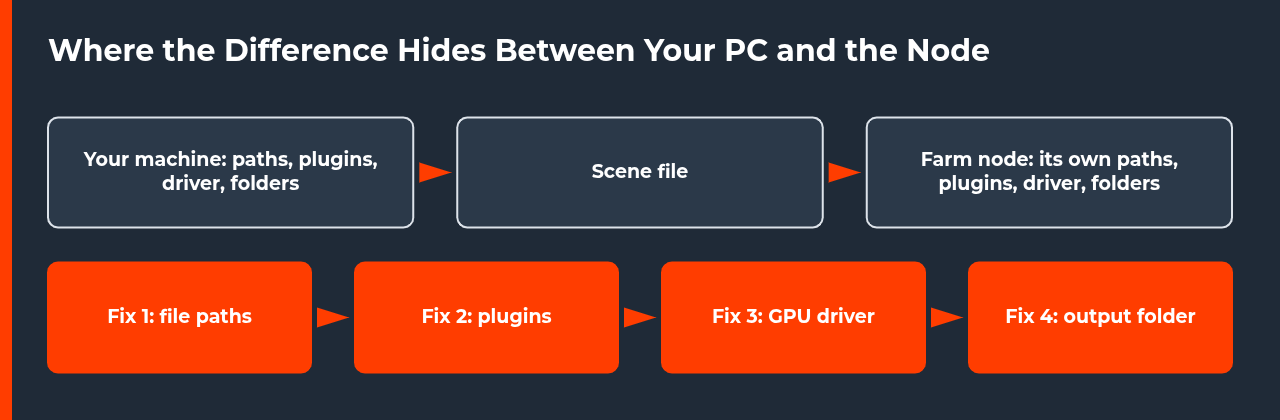
| Difference | What fails on the node | Documented behavior | Fix |
|---|---|---|---|
| File paths | Textures or caches not found | Autodesk: a Render Error citing a map path means the server cannot find that map | Fix 1 |
| Plugins | Load error before rendering | Autodesk: a Missing DLL load error means a plug-in DLL is not present on a rendering server | Fix 2 |
| GPU backend and driver | GPU render unavailable or a different device | Blender lists the minimum hardware and driver for each backend | Fix 3 |
| Output folder | Frames cannot be written | Autodesk: an invalid output path can give Targa – The device is not ready. (0x15) | Fix 4 |
| Timeouts and scene data | The node restarts the application | Autodesk: raise the load or render wait time; add a UVW Map modifier when texture coordinates are missing | Fix 5 |
Fix 1: Make Every File Path Resolve on the Node
Blender’s manual describes four tools under File > External Data. Make Paths Relative makes all paths to external files relative to the current blend-file, and Pack Resources packs all used external files into the blend-file, after which the external files are no longer used. Report Missing Files shows a warning in the Info editor’s header if any file is missing. Find Missing Files searches a chosen directory recursively and restores found files with absolute paths, so run Make Paths Relative again afterward.
In Maya, the File Path Editor lists the paths for references, textures, audio nodes and image planes, flags unresolved files, and offers Repath Files and Auto Resolve. Autodesk adds that a reference node can only be repathed if the target file exists. In Cinema 4D, Maxon’s Project Asset Inspector shows all assets used in the currently displayed scene, so use it to list what the scene depends on before you upload.
For 3ds Max network rendering, Autodesk advises full UNC paths for bitmaps, or the same drive letter mounted on every machine, and an Alternate Map Path in the Network Job Assignment dialog when a server cannot find a map. When a scene renders fine locally but fails on farm nodes with missing textures, our interpretation is that a commercial node cannot see your local drive letters at all, so relative paths or packed files are the safer choice. The farm’s own upload tool decides what it collects, so check its documentation.
Fix 2: Match Plugins and Software Versions
Autodesk’s page says that for the load error about missing DLLs you should confirm that every plug-in DLL used by the job is present on each rendering server. By default, missing DLLs, maps and XRefs are reported as warnings. A system environment variable named 3DSMAX_BACKBURNER_TREAT_MISSING_DLLS_MAPS_XREFS_AS_ERRORS set to 1 makes them stop the job instead. Our reading is that a warning means the job may continue without the missing item, so read the job log even when the frame finishes.
The same logic applies to renderer and plugin versions. Our guide to a render farm version compatibility error covers how to compare them, and the render farm setup failed checklist lists what to check before the first upload.
Fix 3: Check the GPU Backend and Driver on the Node
The Blender 4.3 manual lists CUDA and OptiX for NVIDIA on Windows and Linux, HIP for AMD, oneAPI for Intel Arc and Metal for Apple Silicon Macs only. You choose the backend under Preferences > System > Cycles Render Devices, and then the device per scene under Properties > Render > Device. If the node has different hardware or a different driver, a setting that works on your workstation may not be available there.

| Backend | Vendor | Documented minimum |
|---|---|---|
| CUDA | NVIDIA | Compute capability 3.0 or higher |
| OptiX | NVIDIA | Compute capability 5.0 or higher and driver 495.89 or later |
| HIP | AMD | RDNA1 or newer; Radeon Software 21.12.1 or Radeon PRO Software 21.Q4 on Windows; Radeon Software 22.10 or ROCm 5.3 on Linux |
| oneAPI | Intel | Arc A-Series (Xe HPG); Intel Graphics Driver XX.X.101.5518 on Windows; intel-level-zero-gpu 1.3.27642 on Linux |
| Metal | Apple | Apple Silicon Macs; macOS 13.0 or newer for all features |
Fix 4: Check the Output Path and Permissions
Autodesk says to set the output path in Render Setup to a valid UNC path, otherwise you may see Targa – The device is not ready. (0x15). If Backburner Server runs as a Windows service, its logon account needs adequate permissions, and the page recommends administrative permissions. Shared map directories need full permissions, and shared output directories need both read and write permissions. On a managed farm you usually cannot change these, so keep the output path simple and ask the farm which folder it writes to.
Fix 5: Read the Error Text Before Changing Settings
Each message in the table below points to a different cause. Changing render settings first can hide the real problem, which is why a scene that renders fine locally but fails on farm nodes is faster to fix by reading the log than by guessing.
| Message or symptom | What the page says | Fix |
|---|---|---|
| ERR: Load Error: Missing DLL’S | Confirm every plug-in DLL used by the job is present on each rendering server | Install or remove the plugin |
| Render Error citing a map path | The server cannot find that map; add an Alternate Map Path | Repath or pack |
| Targa – The device is not ready. (0x15) | Set the output path to a valid UNC path | Fix the output path |
| Rebooting 3ds Max by force due to load timeout | Increase Wait For 3ds Max To Load or Wait For 3ds Max To Render | Raise the wait time |
| Garbled error text | A corrupted or missing nrres.dat; copy it from a working system or reinstall Backburner | Repair Backburner |
Step-by-Step: Find the Difference When a Scene Renders Fine Locally but Fails on Farm Nodes
Use this order. Each step changes one thing, so you can see what actually fixed the failure.
- Render one frame. Send a single frame to the farm, not the sequence, and keep the log.
- Read the error text. Match it to a row in Table 1 or Table 3 before you change anything.
- Run the missing-file check. Use Report Missing Files in Blender, the File Path Editor in Maya or the Project Asset Inspector in Cinema 4D.
- Fix the paths. Make paths relative or pack the project, then upload again.
- List your software. Write down the plugins, renderer version and GPU backend you use locally, and compare them with what the farm says it supports.
- Change one item and rerun. Render the same frame again, and only then move to the sequence.
For the wider workflow see our guide to using a render farm for animation. If you are still comparing services, see the top 10 render farms comparison.
What We Could Not Verify
We could not read the current Maxon page on saving a project with assets, so we do not describe it. Autodesk’s troubleshooting page is for 3ds Max 2017 and says nothing about firewalls, licensing or version mismatch. We found no official page stating that Linux nodes treat file name case differently from Windows, so we make no such claim. We also did not test any farm: the guidance applies documented patterns, and each farm has its own upload tool and node images. If a scene that renders fine locally but fails on farm nodes still fails after these checks, send the farm’s support one frame, the log and your software list.
Sources
- Blender Manual 4.2, Topbar (File > External Data) (checked 9 November 2026)
- Blender Manual 4.3, Cycles GPU Rendering (checked 9 November 2026)
- Autodesk, 3ds Max 2017 Help, Network Rendering Troubleshooting Guide (checked 9 November 2026)
- Autodesk, Maya 2017 Help, Manage file paths (checked 9 November 2026)
- Maxon, Cinema 4D Help, The Project Asset Inspector (checked 9 November 2026; only the page summary could be read)
Why does my scene render fine locally but fail on a render farm?
The scene file is the same, but the node differs from your workstation. Textures may sit on a drive the node cannot see, a plugin may be missing, the GPU driver may be older, or the output folder may not be writable. Read the error text first, then check paths, plugins, driver and output folder in that order. Test one frame on the farm before you send the whole sequence.
Should I pack textures into the Blender file before uploading?
Blender documents Pack Resources as packing all used external files into the blend-file, after which the external files are no longer used, so later edits to them are not reflected. Make Paths Relative is the lighter option and keeps files separate. Packing can make the file much larger, so check the farm’s upload limits and its own collection tool before choosing.
What does Report Missing Files do in Blender?
Report Missing Files shows a warning in the Info editor’s header if the scene has missing files, and no warning means no external file is missing. It only reports the problem. Find Missing Files then opens a File Browser, searches the chosen directory recursively and restores found files with absolute paths, so run Make Paths Relative again afterward if you want relative paths.
Do farm nodes need the same GPU driver as my PC?
Not the same version, but each backend has a documented floor. The Blender manual lists OptiX as needing compute capability 5.0 or higher and driver 495.89 or later, and gives minimum drivers for HIP and oneAPI. It recommends official vendor drivers over computer-manufacturer versions. The farm controls the node driver, so ask which backend and driver it supports.
What does a Missing DLL error mean on a network render?
Autodesk says that for ERR: Load Error: Missing DLL’S you should confirm that every plug-in DLL used by the job is present on each rendering server. In plain terms, a plugin your scene uses is installed on your machine but not on the node. Install it on the node, or remove it from the scene if it is no longer needed.
Why does a missing map not always stop the render?
Autodesk says missing DLLs, maps and XRefs are reported as warnings by default. A system environment variable named 3DSMAX_BACKBURNER_TREAT_MISSING_DLLS_MAPS_XREFS_AS_ERRORS set to 1 makes them stop the job. Our reading is that a warning lets the job continue without the item, so always read the log even when the frames finish.
Can I fix a farm failure without access to the node?
Mostly yes. Use relative paths or packed files, list your plugins and renderer version, keep the output path simple and test one frame. These steps are our interpretation of the documentation, not a vendor procedure. Settings that live on the node, such as its driver and permissions, are controlled by the farm, so send support one frame, the log and your software list.

COMMENTS