
A color shift after export usually comes from a mismatch between your monitor, the display transform and the color tags on the final file. Here is the order to check them.
Technical Troubleshooting // Display and Export Chain
A vendor-documentation review of why a color shift after export happens between a monitor, a 3D app and an exported video file, and which settings the Autodesk, Maxon, FFmpeg and YouTube pages actually describe.
COLOR SHIFT AFTER EXPORT | DISPLAY TRANSFORM | BT.709 | FULL VERSUS LIMITED RANGE | FFMPEG COLOR TAGS
- Match the Display First: Autodesk says the 3ds Max Display setting should match your monitor’s calibration, and Maxon says the Redshift display transform should match the monitor, usually sRGB.
- Target BT.709 for SDR: YouTube recommends BT.709 for color space, transfer, primaries and matrix, and converts unsupported color spaces by mapping pixel values.
- Tag Is Not Convert: FFmpeg’s
color_primaries,color_trc,colorspaceandcolor_rangelabel a file, while thescalefilter’sin_color_matrixandout_rangeoptions convert it. - Watch the Range: YouTube documents that full-range color is converted to limited range, so check for crushed or washed blacks.
- Practical Production Fix: decide what the render output saves, then export once for one target. If the problem looks like stepping in gradients instead, see banding in gradients after rendering. Fix the reference first, the delivery second.
Why You See a Color Shift After Export
Treat the pipeline as a chain: monitor, display transform, render output, exported file, player. A color shift after export means one link changed the numbers or the label. The table lists the links we could document.
| Possible cause | Documented? | Fix |
|---|---|---|
| Display setting does not match the monitor | Yes (3ds Max, Redshift) | Fix 1 |
| Delivery color space is not BT.709 | Yes (YouTube) | Fix 2 |
| File is labeled with the wrong or missing color tags | Option names documented (FFmpeg) | Fix 3 |
| Full-range file converted to limited range | Yes (YouTube) | Fix 4 |
| One player renders the same file differently | Not verified from official pages | Fix 5 |
Fix 1: Match the Display Setting to the Monitor
Autodesk’s 3ds Max 2024 documentation lists display choices in the default OCIO config, including sRGB, Gamma 2.2 Rec.709, Rec.1886 Rec.709, AdobeRGB and DCI-P3 D65, and says the Display setting should match your monitor’s calibration. Maxon says the same for Redshift: the display transform should match your monitor, usually sRGB. A wide-gamut monitor viewed through an sRGB setting can produce a color shift after export, because what you approve on screen is not what the file contains. We found no official page on ICC profile behavior, so profile or calibrate the monitor with your calibration tool’s own guidance.
Fix 2: Pick One Delivery Target
For SDR web video, YouTube’s upload page recommends BT.709 for color space, transfer, primaries and matrix, and H.264 High Profile with 4:2:0 and progressive scan. It also says unspecified values are assumed to be BT.709, equivalent values are treated as the same, and unsupported color spaces are converted to BT.709 by mapping pixel values. RGB color matrices are not recommended: the matrix is treated as unspecified and inferred from the primaries, and an sRGB transfer is converted to BT.709. Setting the display and output to BT.709 deliberately avoids a color shift after export caused by those conversions.
Fix 3: Tag the Export, and Convert Only When Needed
FFmpeg’s codec options include color_primaries, color_trc, colorspace and color_range, with values such as bt709, smpte170m, bt2020 and iec61966_2_1 for the transfer. The documentation notes that color_range as an input option is only a hint to the decoder. The h264_metadata bitstream filter can write colour_primaries, transfer_characteristics, matrix_coefficients and video_full_range_flag into the stream. Our reading is that these change the labels, not the pixels. When pixels must be converted, FFmpeg’s scale filter has options named in_color_matrix, out_color_matrix, in_range and out_range.
A command built from those documented option names looks like this. Test it on a short clip, because we did not run it for this guide.
ffmpeg -i input.mov -vf scale=out_color_matrix=bt709:out_range=tv -c:v libx264 -pix_fmt yuv420p -color_primaries bt709 -color_trc bt709 -colorspace bt709 -color_range tv output.mp4If a color shift after export appears only in the exported file, compare a frame from the render and a frame from the file in the same viewer before you change anything else.
Fix 4: Check Full Versus Limited Range
YouTube documents that full-range color is converted to limited range. If blacks look crushed or washed after upload, a double or missing range conversion somewhere upstream is a likely suspect, and the FFmpeg range options in Fix 3 are the places to check. This is our interpretation; the documentation states the conversion but not the symptoms.
Fix 5: Test in More Than One Player
View the same file in a browser, a desktop player and QuickTime or your editor, then upload a short test clip to the target platform and compare. Community posts report that QuickTime on macOS shows BT.709 video differently, but we could not confirm that from Apple’s documentation, so treat it as a reason to test and not as a rule. If you also see banding in the gradients, read banding in gradients after rendering. For the wider set of quality problems, see fixing render noise and flicker in animation.
Where a Color Shift After Export Starts: The Five-Stage Chain
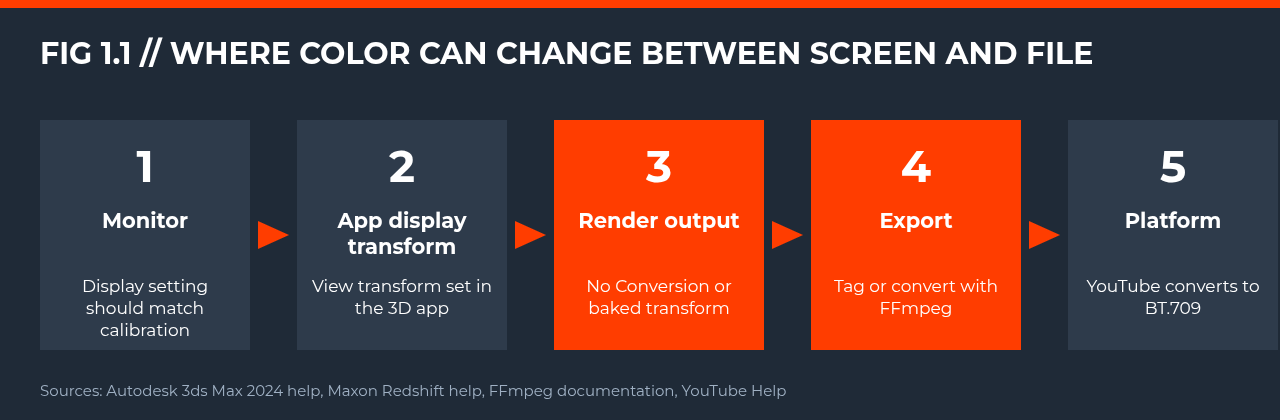
A color shift after export can start at any of five stages: the monitor setting, the display transform in the 3D app, what the render output saves, the labels or conversion applied on export, and the platform’s own processing. The table maps each stage to what the vendor pages document, so you can find which stage your file went wrong at.
| Stage | What can change | Documented behavior | Source |
|---|---|---|---|
| 1. Monitor setting | What you approve on screen | Display setting should match the monitor’s calibration | Autodesk 3ds Max 2024 help |
| 2. App display transform | How rendering values are shown | Redshift display transform should match the monitor, usually sRGB | Maxon Redshift help |
| 3. Render output | Whether the transform is baked into the file | No Conversion saves untransformed rendering-space values; Display or View Transform bakes it in | Autodesk, Maxon |
| 4. Export | Labels and conversions | FFmpeg labels with color options and converts matrix and range with scale | FFmpeg documentation |
| 5. Platform | Re-encoding on upload | Unsupported color spaces are converted to BT.709 and full range becomes limited range | YouTube Help |
Tagging Versus Converting: What FFmpeg Actually Changes
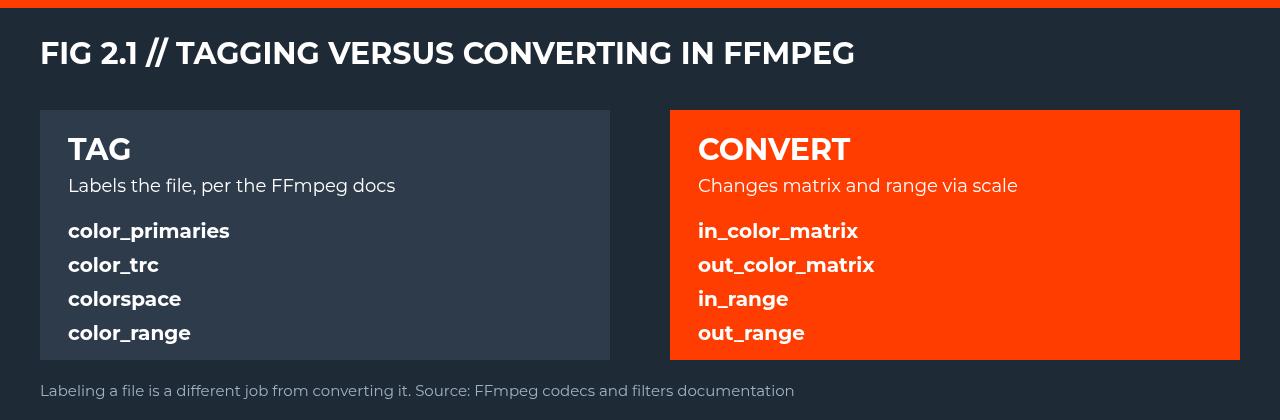
FFmpeg exposes color_primaries, color_trc, colorspace and color_range as options, with values such as bt709, smpte170m, bt2020 and iec61966_2_1. The h264_metadata bitstream filter writes colour_primaries, transfer_characteristics, matrix_coefficients and video_full_range_flag into an H.264 stream. The scale filter is a separate tool with matrix and range conversion options.
| Tool | Options | Job | Source |
|---|---|---|---|
| Codec options | color_primaries, color_trc, colorspace, color_range | Label the output stream | FFmpeg codecs documentation |
| Input color_range | color_range | Decoder hint only | FFmpeg codecs documentation |
| h264_metadata | colour_primaries, matrix_coefficients, video_full_range_flag | Writes the values into the H.264 stream | FFmpeg bitstream filters documentation |
| scale filter | in_color_matrix, out_color_matrix, in_range, out_range | Converts matrix and range | FFmpeg filters documentation |
in_color_matrix and in_range explicitly so the conversion does not depend on a guess, and test the command on a short clip first.Fix 6: Choose What the Render Output Saves
In the 3ds Max Render Output Defaults, Autodesk describes two choices: No Conversion saves untransformed rendering-space values, and Display or View Transform bakes a display transform and tone map into the file. Our interpretation: a file saved with No Conversion can look different from the viewport, which is one more way to get a color shift after export, although Autodesk does not describe the symptom.
Maxon states that LDR outputs such as JPG and PNG need the view transform baked in, and that baking it clamps highlights to 1.0. For compositing and grading, Maxon recommends an unclamped linear EXR saved without the view transform. Pick one of the two on purpose for each file instead of exporting everything the same way.
Step-by-Step Export Check for a Color Shift After Export
Use this order for every delivery. It follows the vendor pages in the tables above and keeps one decision per step.
- Set the display. In 3ds Max choose the Display option that matches your monitor calibration, and in Redshift set the display transform to match the monitor, usually sRGB.
- Decide the file’s job. A delivery file bakes the transform in, and a grading master is an unclamped linear EXR without the view transform.
- Pick the delivery target. For SDR web video YouTube recommends BT.709 for color space, transfer, primaries and matrix, with H.264 High Profile, 4:2:0 and progressive scan.
- Export once, then label or convert. Use the FFmpeg color options to label the file, or the
scalefilter only when the pixel values must change. - Check the range. Confirm whether the file is full or limited range, because YouTube converts full range to limited range.
- Compare. Open a short clip in more than one player and compare the same frame with the viewport before you export the whole sequence.
What We Could Not Verify
We could not read official pages on QuickTime gamma, ICC profile behavior, the sRGB versus Rec.709 transfer difference, Adobe Premiere or After Effects export color behavior, or Blender’s video output color space options. We also did not verify the behavior of FFmpeg’s zscale or colorspace filters. If your color shift after export persists after the checks above, the cause is likely in one of those areas.
Sources
- YouTube Help, Recommended upload encoding settings: support.google.com (checked 2 November 2026)
- FFmpeg Documentation, Codecs (general options): ffmpeg.org (checked 2 November 2026)
- FFmpeg Documentation, Bitstream Filters (h264_metadata): ffmpeg.org (checked 2 November 2026)
- FFmpeg 7.1 source listing, vf_scale (option names): ffmpeg.org (checked 2 November 2026)
- Autodesk, 3ds Max 2024 Help, Color Management Settings: help.autodesk.com (checked 2 November 2026)
- Maxon, Redshift for Cinema 4D, Color Management and OCIO/ACES: help.maxon.net (checked 2 November 2026)
- FFmpeg bitstream filters documentation, h264_metadata: ffmpeg.org
- FFmpeg filters documentation, scale: ffmpeg.org
FAQ
Why does my video look different on YouTube than in my editor?
YouTube recommends BT.709 and converts unsupported color spaces to BT.709 by mapping pixel values, and it converts full-range color to limited range. A mismatch in color space, matrix or range upstream can therefore show up as a color shift after export.
Does tagging a file as BT.709 change the pixels?
Our reading of FFmpeg’s documentation is that color_primaries, color_trc, colorspace and color_range label the stream, while the scale filter options such as out_color_matrix and out_range convert pixels. Test on a short clip to confirm for your pipeline.
Should my monitor and 3D app display setting match?
Yes. Autodesk says the 3ds Max Display setting should match your monitor’s calibration, and Maxon says the Redshift display transform should match your monitor, usually sRGB.
Does QuickTime show a color shift after export?
Community reports say it can for BT.709 video, but we could not confirm this from Apple’s documentation. Check the same file in more than one player.
Does saving a JPG or PNG from the render bake in the view transform?
Maxon states that for LDR outputs such as JPG and PNG the view transform must be baked in, and baking it clamps highlights to 1.0. For compositing, Maxon recommends an unclamped linear EXR saved without the view transform. Autodesk’s 3ds Max Render Output Defaults offer No Conversion, which saves untransformed rendering-space values, or Display or View Transform, which bakes in the display and tone map.
What is the difference between tagging and converting a file in FFmpeg?
Tagging writes labels such as color_primaries, color_trc, colorspace and color_range, or the h264_metadata fields, so players know how to read the file. Converting changes the values themselves, and the scale filter does this with in_color_matrix, out_color_matrix, in_range and out_range. Used as an input option, color_range is only a decoder hint, so it does not convert anything.
Which settings does YouTube recommend to avoid a color shift after export?
For SDR video YouTube recommends BT.709 for color space, transfer, primaries and matrix, with H.264 High Profile, 4:2:0 and progressive scan. When values are unspecified YouTube assumes BT.709, it converts unsupported color spaces by mapping pixel values, and it converts full range to limited range. These are YouTube’s own upload recommendations, so other platforms may differ.

COMMENTS