
When a render looks flat compared to the viewport, the cause is usually the view transform, an engine difference or baked-in tone mapping. Here is how to check each one.
Technical Troubleshooting // Flat Renders
A documentation review of why a render looks flat compared to the viewport, covering view transforms, looks, lighting engine versions and what the output file bakes in.
RENDER LOOKS FLAT COMPARED TO THE VIEWPORT | VIEW TRANSFORM | AGX AND FILMIC | ACES | LINEAR EXR
- Contrast Is a Setting: the Blender 4.0 release page labels AgX looks Base Contrast and Punchy and Filmic Medium Contrast, and Maxon describes the ACES 2 default in Redshift as neutral with softer contrast than ACES 1.
- Old Files Keep Old Transforms: Blender 4.0 notes say AgX replaces Filmic as the default in
newfiles, so a file made before 4.0 may still use Filmic. - EEVEE Changed in 4.2: the 4.2 notes list screen-space ray tracing for every BSDF and virtual shadow maps, so a preview from an older version can differ.
- Keep Headroom: Maxon documents that baking the view transform into a JPG or PNG clamps highlights at 1.0, and recommends an unclamped linear EXR for compositing.
- Practical Production Fix: compare both frames with the same view transform, then grade from EXR. If banding appears when you push the image, see banding in gradients after rendering.
Why a Render Looks Flat Compared to the Viewport
A flat result means low contrast and compressed highlights. The preview you trusted may be using a different display transform, a cruder lighting approximation or a different exposure than the final frame. Use the table to find where your render looks flat compared to the viewport.
| Possible cause | Documented? | Fix |
|---|---|---|
| Viewport and final render use different view transforms or looks | Yes (Blender, Redshift, 3ds Max) | Fix 2 |
| An old file kept an older default view transform | Yes (Blender 4.0 notes) | Fix 2 |
| The lighting engine changed between versions | Yes (Blender 4.2 notes list the changes) | Fix 3 |
| Different view transforms handle highlights and contrast differently | Partly: Maxon says ACES 2 has softer contrast than ACES 1; Autodesk says ACES 1.0 boosts contrast | Fix 4 |
| Highlights were clamped when the view transform was baked into the file | Yes (Redshift, 3ds Max) | Fix 5 |
| The preview mode was never a lighting reference | Not verified: we could not read the current viewport shading manual | Fix 1 |
Fix 1: Compare Like With Like
Judge the look from a rendered frame, or from the engine’s rendered view with the same view transform, not from a solid, matcap or default-light viewport mode. We could not read the current Blender manual page on viewport shading, so this is general practice and not a documented rule. If your render looks flat compared to the viewport only in one mode, the comparison itself may be the problem. Our guides to Eevee preview versus final render and Maya playblast versus final render cover how previews differ from final output in those tools.
Fix 2: Check the View Transform and Look
Contrast is partly a setting. Blender 4.0 made AgX the default view transform for new files, and the release notes say AgX replaces Filmic as the default in new files, so a file from before 4.0 may still use Filmic. The notes add that Filmic and AgX target SDR displays, while Standard also works with the new HDR display option on macOS. The 4.0 release page shows AgX with a Base Contrast and a Punchy look and Filmic labeled Medium Contrast, so switching transform or look changes contrast by design.
In Redshift, Maxon documents that the default is the ACES 2.0 SDR video view transform, described as neutral, and that ACES 2 has softer contrast than ACES 1. Tone mapping is optional, and the page says there is no right or wrong choice. In 3ds Max 2024, the default OCIO config offers ACES 1.0 SDR-video, Un-tone-mapped, Log and Raw view transforms, and Autodesk notes that Un-tone-mapped clips values above 1.0. If a render looks flat compared to the viewport, compare both with the same view transform before you touch the lights.
Fix 3: Check Whether the Lighting Engine Changed
Blender 4.2 rewrote EEVEE. The release notes list screen-space ray tracing for every BSDF, virtual shadow maps, volume light probes baked per object and the removal of contact shadows. The notes do not say how earlier versions compared with Cycles, so our reading is only that a scene previewed in one EEVEE version can look different in another. Check which version made your preview, and compare a final frame from the same version. If a render looks flat compared to the viewport after a version change, compare the engine versions as well.
Fix 4: Check Exposure and Highlights Under Tone Mapping
Different view transforms handle highlights and contrast differently, so a scene that looked punchy under a plain transform can look flat after tone mapping. In that case, adjust exposure or the lighting contrast rather than relying on the look alone. This is our suggestion. A render that looks flat compared to the viewport after you switch to a tone-mapping transform may only need more exposure or lighting contrast. The documentation we read describes the transforms but does not give exposure targets.
Fix 5: Render to Unclamped Linear EXR and Grade in Compositing
Maxon documents that baking the view transform into an LDR file such as JPG or PNG clamps highlights to 1.0 and limits how far you can push the image later. For compositing, Maxon recommends saving an unclamped linear EXR without the view transform, and notes that Direct Output EXRs stay unclamped even when a tone-mapping view transform is on. Autodesk’s 3ds Max documentation matches this: the No Conversion render output option saves linear values suited to compositing and grading, while the Display / View Transform option bakes in a display and tone map.
Adding contrast, glare and color correction afterward is a legitimate step, not a rescue. If banding appears when you push a graded image, read banding in gradients after rendering. For the wider set of quality problems, see fixing render noise and flicker in animation.
Where Contrast Is Lost When a Render Looks Flat Compared to the Viewport
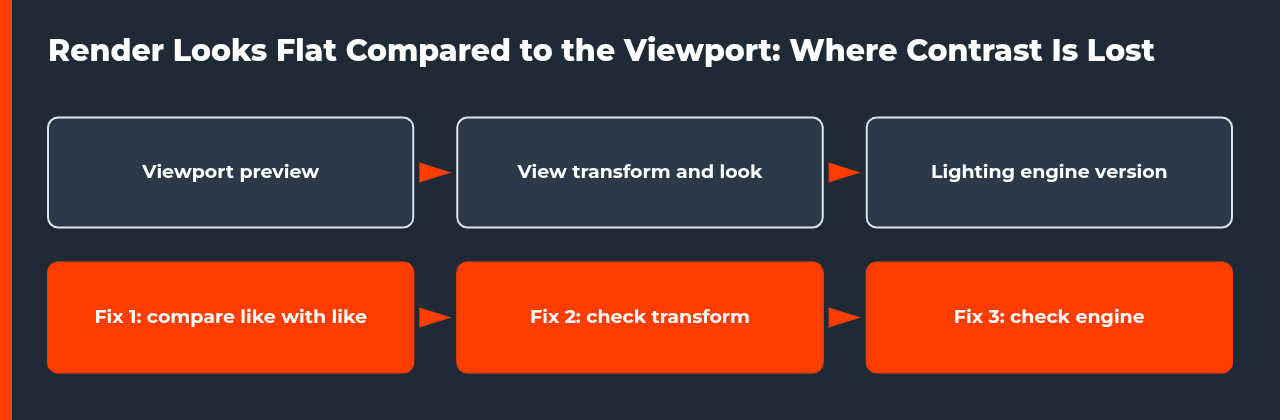
When a render looks flat compared to the viewport, contrast is usually lost at one of three places: the view transform and look, the lighting engine version, or the output file that bakes the transform in. The figure shows the order to check them, and the table lists the defaults each application documents.
| Application | Documented default | Contrast note | Source |
|---|---|---|---|
| Blender 4.0 and later | AgX in new files; older files keep Filmic | AgX looks labeled Base Contrast and Punchy, Filmic labeled Medium Contrast | Blender 4.0 notes and release page |
| Redshift | ACES 2.0 SDR video | Neutral, with softer contrast than ACES 1; tone mapping is optional | Maxon documentation |
| 3ds Max 2024 | Default OCIO config with ACES 1.0 SDR-video, Un-tone-mapped, Log and Raw | Un-tone-mapped clips values above 1.0 | Autodesk documentation |
What the Output File Bakes In: Baked JPG or PNG Versus Linear EXR
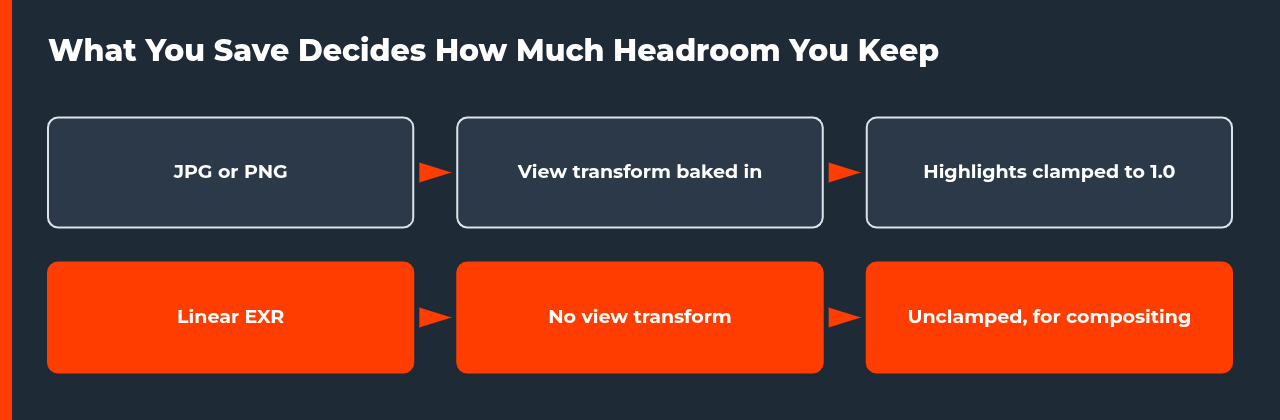
A render can look flat after saving even when the render window looked right, because the output setting decides whether the view transform is baked into the file.
| Output choice | View transform | Highlights | Best for |
|---|---|---|---|
| JPG or PNG | Baked in | Clamped to 1.0 | Final delivery |
| Linear EXR | Not applied | Unclamped | Compositing and grading |
| 3ds Max No Conversion | Not baked in | Linear values | Compositing and grading |
| 3ds Max Display or View Transform | Baked in with display and tone map | Tone mapped | Final delivery |
Step-by-Step Check When a Render Looks Flat Compared to the Viewport
Use this order on one frame, and change one thing at a time.
- Compare like with like. Judge from a rendered frame or the engine’s rendered view, not from a solid or matcap viewport mode.
- Match the view transform and look. Set the viewport and the render to the same transform before touching the lights.
- Check the file version. A file made before Blender 4.0 may still use Filmic.
- Check the engine version. A preview made in one EEVEE version can differ from another, so compare frames from the same version.
- Adjust exposure or lighting contrast. This is our suggestion if a tone-mapping transform made the frame look flat.
- Save EXR and grade afterward. Use an unclamped linear EXR without the view transform, then add contrast, glare and color correction in compositing.
What We Could Not Verify
We could not read the current Blender manual pages on view transforms and viewport shading, or the Arnold and V-Ray color documentation, and we found no official page that says atmospheric depth, light falloff or glare fixes a flat render. We also found no documentation that says Filmic or AgX are flatter than Standard in general. If your render looks flat compared to the viewport in one of those engines, test with a single frame.
Sources
- Blender Developer Documentation, 4.0 Color Management release notes: developer.blender.org (checked 2 November 2026)
- Blender 4.0 release page: blender.org (checked 2 November 2026)
- Blender Developer Documentation, 4.2 EEVEE release notes: developer.blender.org (checked 2 November 2026)
- Maxon, Redshift for Cinema 4D, Color Management and OCIO/ACES: help.maxon.net (checked 2 November 2026)
- Autodesk, 3ds Max 2024 Help, Color Management Settings: help.autodesk.com (checked 2 November 2026)
FAQ
Why does my render look flat compared to the viewport after upgrading Blender?
Blender 4.0 made AgX the default for new files only, and 4.2 rewrote EEVEE. An older file keeps its saved view transform, and the preview engine may differ by version, so compare both with the same view transform in the same version.
Is Filmic or AgX flatter than Standard?
We found no documentation that says so in general. The 4.0 release page labels AgX looks as Base Contrast and Punchy and Filmic as Medium Contrast, so contrast depends on the transform and look you pick.
Should I render to JPG or PNG if I plan to grade the image later?
Maxon documents that baking the view transform into an LDR file clamps highlights to 1.0 and limits later edits, and recommends an unclamped linear EXR for compositing.
Can adding lights fix a render that looks flat compared to the viewport?
Only if the lighting is the cause. Check the view transform, look and file format first, because those can flatten a frame without any change to the lights.
What is AgX in Blender?
AgX is a view transform that Blender 4.0 made the default for new files, replacing Filmic. The 4.0 notes say Filmic and AgX target SDR displays, while Standard also works with the new HDR display option on macOS. The 4.0 release page shows AgX with Base Contrast and Punchy looks, so switching look changes contrast by design.
Does the Redshift default view transform have soft contrast?
Maxon documents that the default is the ACES 2.0 SDR video view transform, described as neutral, and that ACES 2 has softer contrast than ACES 1. Tone mapping is optional, and the page says there is no right or wrong choice. If the render looks flat, compare both frames with the same transform before changing lights.
What does Un-tone-mapped do in 3ds Max?
In 3ds Max 2024, the default OCIO config offers ACES 1.0 SDR-video, Un-tone-mapped, Log and Raw view transforms. Autodesk notes that Un-tone-mapped clips values above 1.0. Autodesk also documents that the No Conversion render output option saves linear values suited to compositing and grading, while Display or View Transform bakes in a display and tone map.

COMMENTS