
How to use computer while rendering: why the interface lags during long renders and five ways to keep your workstation usable.
Quick answer
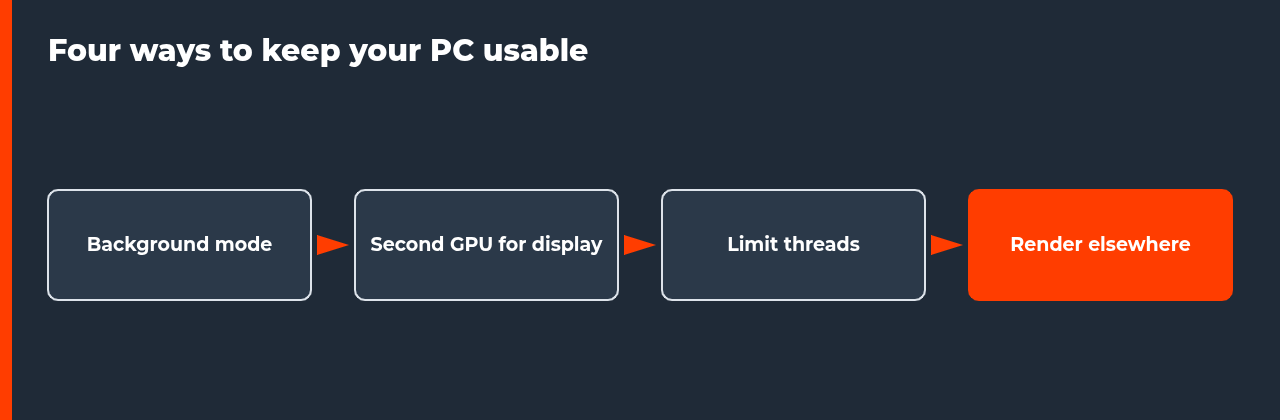
You can use computer while rendering only if the render and your work do not fight for the same hardware. Render in background mode, give the display its own GPU, limit render threads, schedule heavy jobs for off hours, or send them to another machine.
USE COMPUTER WHILE RENDERING | BACKGROUND MODE | SECOND GPU | THREAD LIMIT | RENDER ELSEWHERE
- Know the conflict: one GPU cannot draw your screen and render at full speed.
- Background mode: Blender can render without its interface.
- Second GPU: the manual recommends separate cards for display and rendering.
- Thread limits: leave cores free at the cost of a longer render.
- Move the job: a separate machine frees your PC entirely.
A long render turns a powerful workstation into a machine you cannot touch. The cursor stutters, the viewport freezes and the browser takes seconds to open a tab. If you want to use computer while rendering, you first need to know which resource the render is taking, because the fix depends on it.
This guide separates the causes, lists five ways to stay productive during a render, and shows when the better answer is to stop rendering on your own machine. It sits in the cluster around local vs cloud rendering for animators, which has the cost model for that last decision.
Why you cannot use computer while rendering
A render uses whatever hardware you give it. GPU rendering takes the graphics card, CPU rendering takes the processor cores, and both need memory. When the same card also draws your screen, the interface has to wait. The Blender manual notes issues with interactivity when the same graphics card is used for display and rendering, says that older GPUs can only render or draw the user interface at once, and states that this can make Blender unresponsive while it renders.
The manual also says that when a GPU handles both display and rendering, Windows limits the time a single GPU task can run, and it recommends separate cards for display and rendering. Read the full explanation in the Blender Cycles GPU rendering manual.
| Resource taken | What you notice | Likely fix |
|---|---|---|
| GPU also driving the display | Stuttering cursor, frozen viewport | Second GPU or background mode |
| All CPU cores | Whole system feels slow | Limit threads |
| GPU and system memory | Applications crash or swap | Close other programs, render later |
| Disk and network | Slow file operations | Render to a separate drive |
The table is a reading of the Blender manual and general computing behaviour, not a measurement of your machine. Watch your own task manager during a render to see which resource is actually saturated.
Five ways to use computer while rendering
- Render in background mode. The Blender manual says background mode renders without the interface and needs no graphical display. Without an open viewport, there is less contention on the card.
- Give the display its own GPU. A small second card drives your monitors while the main card renders. This is what the manual recommends for avoiding the conflict.
- Limit render threads. On CPU renders, fewer threads leave cores free for your work. The render takes longer, so test a short range first.
- Render when you are away. Queue long jobs at the end of your day, check the first frames, and render to an image sequence so a failure does not lose the whole result.
- Render on another machine. A separate workstation or rented machine takes the whole load. Your own computer is then fully free.
Background mode and thread limits in practice
The Blender manual describes background mode with the ‑b option, and animation rendering with ‑a, using the settings saved in the file. Frame ranges use ‑s and ‑e, and the manual warns that arguments are executed in the order given, so ‑a or ‑f should come last. Its example also passes a thread option. Read the command line rendering page before you script jobs.
Treat thread limits as a trade. Using fewer threads frees cores but lengthens the render. Test on a short frame range, note the time per frame at each setting and choose the lowest thread count that still lets you work comfortably.
| Option | Effect on your work | Cost or trade-off |
|---|---|---|
| Background mode | Removes viewport contention | Less convenient for monitoring |
| Second display GPU | Separates display and render | Extra hardware cost |
| Thread limit | Leaves cores free on CPU renders | Longer render time |
| Off-hours rendering | No contention at all | Result waits until morning |
| Render elsewhere | Frees your PC completely | Transfer and rental cost |
Protect long renders while you are away
If you render overnight, protect the job. Disable sleep and automatic restarts, so the machine does not stop in the middle of a frame. Render to an image sequence. The Blender manual notes that disabling Overwrite and enabling Placeholders lets several machines share one output folder, and a sequence also lets you restart from the failed frame instead of starting again.
Check the first frames before you leave and the last frames when you return. A job that fails after ten minutes and sits idle all night costs you the night, so a short test run before you walk away is cheap insurance.
| Check | Why |
|---|---|
| Sleep and restart disabled | Machine stays awake |
| Image sequence output | Restart from the failed frame |
| First frames inspected | Catches settings errors early |
| Disk space free | A full disk stops the job |
Measure before you change anything
Before you buy a second card or rewrite your workflow, find out what the render is actually taking. Open your system monitor during a short test render and watch GPU load, CPU load, memory and disk activity. If the graphics card sits at full load while the screen lags, the display conflict is the cause. If every CPU core is saturated, a thread limit is the lever. If memory is full, nothing else will help until you reduce the scene or close other programs.
Write down what you see and what you tried. A short note such as “GPU at full load, screen lags, background mode fixed it” turns a vague annoyance into a repeatable setting, and it tells you later whether a hardware change is really needed or whether a configuration change would have done the job.
When your PC is the bottleneck
If renders regularly block your working day, count the hours. Work you cannot do while the machine renders has a price, and it belongs in the comparison. The pillar on local vs cloud rendering gives a break-even model using fixed monthly cost, running cost and a cloud hourly rate. If you plan to move jobs off your machine, migrating your animation pipeline to the cloud covers the steps and the fallback.
FAQ: use computer while rendering
Why does my screen lag when I render on the GPU?
When one graphics card both draws your screen and renders, the two jobs compete. The Blender manual notes issues with interactivity when the same card is used for display and rendering, and says older GPUs can only render or draw the interface at one time, which can make Blender unresponsive. A second card for display avoids the conflict.
Can I use computer while rendering if I only have one GPU?
Yes, with limits. You can render in background mode so no interface competes, limit how many threads the render uses, or schedule renders for times you are away. Heavy GPU work will still slow anything that needs the same card, so light tasks such as writing and email are realistic, while 3D work is not.
What does background mode do?
The Blender manual describes background mode as rendering without the interface, and says a graphical display is not needed, so you can render over a remote shell. Because no viewport is drawn, the render does not compete with an open scene. It does not remove the load of the render itself.
Does limiting threads help me use computer while rendering?
It can on CPU rendering, because the render leaves some cores free for other work. The cost is a longer render. Blender’s command line accepts a thread option, and the manual’s own example uses it. Find a balance by testing a short range of frames at different thread counts.
Is a second GPU worth it just for display?
It depends on how often you render and how much you need the machine meanwhile. A small second card for display separates the two jobs, as the Blender manual recommends. Weigh its cost against the alternative of sending heavy jobs to rented machines, which the local vs cloud rendering guide helps you price.
Can I render overnight instead?
Yes, and it is the cheapest fix when your deadline allows it. Queue the job when you stop work, make sure power settings will not put the machine to sleep, and render to an image sequence so a failure does not lose everything. Check the first frames before you leave.
When should I stop rendering on my own PC?
When renders regularly block your working day, or when jobs run past your deadlines, the machine is the bottleneck. At that point compare your own hours against cloud cost with the break-even model in the pillar guide. A rented machine frees your computer entirely, at a price you can calculate.

COMMENTS