
When an animation renders slowly, the cause is almost always one of nine things, and most have little to do with how fast your computer is. In my own
When an animation renders slowly, the cause is almost always one of nine things, and most have little to do with how fast your computer is. In my own scenes the repeat offenders are oversized textures, too many samples, motion blur on objects nobody looks at, excessive GI bounces, heavy geometry with no instancing, an overworked denoiser, a CPU or disk that starves the GPU, VRAM overflow spilling to system RAM, and rendering test frames at full quality. You find which one is hitting you by reading the render log and watching resource usage, fix that first, and only look at faster hardware or a render farm once the scene itself is lean.
Whenever a render feels slow my first instinct used to be that I needed a better machine. After enough projects I started keeping notes on what was actually slowing things down, and the pattern was almost funny. The same handful of problems kept coming back, and a faster GPU would have fixed maybe two of them. Here are the nine I run into most, with how I spot each one and what I do about it.
The nine bottlenecks, and how to catch them
| # | Bottleneck | How I spot it | What I do |
|---|---|---|---|
| 1 | Oversized textures | Slow scene load, high VRAM, 8K maps on small objects | Drop far objects to 2K, hero to 4K, optimized format |
| 2 | Too many samples | Render time scales straight with sample count, image already clean | Lower samples on the noisiest frame, add a denoiser |
| 3 | Motion blur where it does not matter | Log shows blur eating time on background or soft objects | Cut blur steps per object, keep it on the focal subject |
| 4 | Too many GI bounces | A bounce count copied from an old project, never revisited | Drop bounces where light is not bouncing much |
| 5 | Heavy geometry, no instancing | Duplicated meshes, no proxies, long pre-render geometry stage | Instance repeats, proxy dense assets, cache sims |
| 6 | Overworked denoiser | Detail smears, or the sequence shimmers on playback | Ease the denoiser, or use a temporal mode and nudge samples up |
| 7 | CPU or disk starving the GPU | GPU usage dips below 100% mid-render | Faster storage, less live evaluation, cache before render |
| 8 | VRAM overflow to system RAM | Sudden slowdown on the heaviest frames, out-of-core kicks in | Cut texture and geometry load, or move to a 24GB GPU |
| 9 | Test frames at final quality | Every look-dev tweak costs a full frame | Keep a low-sample preview profile, render regions only |
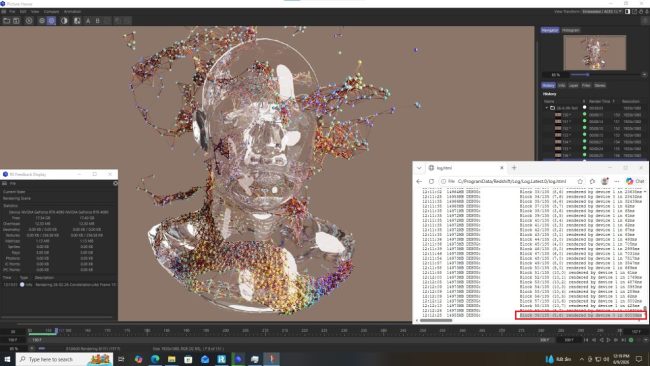
Two of these deserve a closer look, because they fool people the most. Number 7 is the one I missed for years. If your GPU usage keeps dipping below 100% during a render, the card is sitting there waiting for something else to feed it, usually a slow drive or heavy live evaluation. A faster GPU does nothing for that. I once watched a friend buy a new card to fix a slow render that turned out to be a worn-out hard drive feeding a 200GB cache one slow read at a time.
Number 8 hides until your heaviest frame hits. Everything renders fine, then one frame with extra geometry or a big texture set pushes past your VRAM and the engine spills into system RAM. That spill is far slower, so a single frame suddenly takes many times longer than its neighbors. If only your heavy frames crawl, this is usually why.
When the bottleneck really is hardware: choosing a render farm
Say you work through the list and the scene is clean, but the shot is genuinely demanding and your one card is the limit. That is the point where a render farm earns its keep. Since this site is not tied to any single farm, here is how the main ones compare for animation work, with what they are good at and where they bite.
| Render farm | Model | Strong for | Watch out for |
|---|---|---|---|
| GarageFarm | SaaS | Beginners, drag-and-drop submission, friendly support | You render in their system, so unusual plugins or versions can fail |
| RebusFarm | SaaS | Best scene checker, strong CPU rendering, wide software support | Dated interface, not the cheapest |
| Fox Renderfarm | SaaS | Lowest price on big frame batches | Support and queue times at peak can be uneven |
| SheepIt | Free / community | Free Blender rendering by contributing your own GPU | Blender only, queue waits, not built for hard deadlines |
| iRender | IaaS (full server) | Custom setups, any plugin or version, multi-GPU up to 8x RTX 4090 | Manual setup, billing clock runs while the server is on |
The split that matters here is SaaS versus IaaS. A SaaS farm takes your file and renders it on machines you do not see, which is wonderful when your setup is standard and you want zero fuss. The moment your project needs a specific software version, a plugin the farm does not stock, or a real-time app that template farms cannot run, you hit a wall.
iRender goes the other way. You rent a full remote machine with up to 8x RTX 4090 and 256GB of RAM and treat it like your own workstation, installing whatever you run locally. The current line, “your renders, your rules,” fits the way it works, because the machine does not care what is standard, it just runs your setup. The catch is the part of the table that says manual setup and a running clock. You install your software and move your files the first time, which took me a little over half an hour, and the billing runs from server boot until you shut it down, so an idle server you forgot about still costs you. I treat shutting it down the second the render finishes as part of the job.
On cost: iRender’s Credit Back returns roughly 10% to 20% of spend as credits (10% standard, 12% weekday Happy Hours, 20% weekend Golden Hours, GMT+7), and new accounts get a 100% first-deposit bonus. For regular renderers the credits add up, and stacking the first-deposit bonus with weekend rates can bring the effective price down a long way. (Check current rates before relying on them.)
One last thing, because it is the most common mistake I see. A render farm does not fix a slow scene. It renders your slow scene faster, and charges you for the privilege. If the cause is one of bottlenecks 1 through 6, a farm just speeds up your own waste. Fix the scene first. Reach for the farm when the scene is lean and the only thing left is raw compute.
FAQ
Why is my animation rendering so slowly?
Usually because of the scene, not the computer. The common causes are oversized textures, too many samples, unnecessary motion blur, excess GI bounces, heavy geometry without instancing, an overworked denoiser, a CPU or disk starving the GPU, VRAM overflow, and rendering test frames at full quality. Read your render log and watch resource usage to find which one applies, then fix that before buying hardware.
How do I find what is slowing my render down?
Two tools tell you almost everything. Your render log breaks each frame into stages, so you can see whether sampling, geometry, or post is eating the time. A resource monitor shows whether the GPU is pinned at 100 percent or dipping, which reveals a CPU, disk, or memory bottleneck. Start with whichever stage or resource is clearly the limit.
Does a render farm fix slow rendering?
Only when the bottleneck is hardware. A render farm renders whatever you send it, including all the inefficiency, so if your scene has oversized textures or excessive samples, a farm just renders that waste faster and bills you for it. Optimize the scene first. Use a farm when the scene is lean and you simply need more compute than your machine has.
Your renders, your rules
Once your scene is lean and the only limit is raw compute, I render on a full GPU server I control instead of fighting my own hardware. New accounts get a 100% first-deposit bonus, and weekend renders earn up to 20% back. See iRender GPU servers and pricing → iRender RTX 4090 servers.
See more: Best Cloud Rendering for C4D + After Effects Pipeline: One Server, Full Workflow

COMMENTS