
A render that crashes is worse than a render that is slow. Slow you can plan around. A crash at 3am wipes out the hours you already paid for and leav
A render that crashes is worse than a render that is slow. Slow you can plan around. A crash at 3am wipes out the hours you already paid for and leaves you with nothing to show. I have lost whole nights to this, and over the years the crashes sorted themselves into a short list of causes that come back again and again. This guide is how I work through them now, in the order that finds the problem fastest.
Render crashes almost always come from one of five places: running out of VRAM or system RAM, a graphics driver fault, a corrupt scene or cache, a software or version mismatch, or an unstable machine under thermal or power stress. The quickest way to find yours is to read what the engine logged at the moment it died, then match that to the cause. Memory errors say “out of memory,” driver faults mention the display driver, and a frame that only fails on the heaviest shots usually points to VRAM or power. Fix the cause, then make future renders survivable by writing image sequences and skipping completed frames.
The five families of render crash
Almost every crash I see belongs to one of these groups. The log usually tells you which, if you know what to look for.
| Crash family | What the log or symptom shows | First move |
|---|---|---|
| Out of memory (VRAM) | “CUDA out of memory”, fails on heavy frames | Cut textures and geometry, or use a bigger card |
| Out of memory (system RAM) | Machine freezes, swaps to disk, then dies | Cache sims, close apps, add RAM |
| Driver fault | “Display driver stopped responding”, TDR | Clean-install the Studio driver, adjust TDR |
| Corrupt scene or cache | Same frame fails every time, odd geometry errors | Clear caches, reimport assets, resave the file |
| Version or plugin mismatch | Works on one machine, fails on another | Match software and plugin versions exactly |
| Thermal or power instability | Random crashes under sustained load | Check temps, undervolt, verify the PSU |
How to read the crash before you change anything
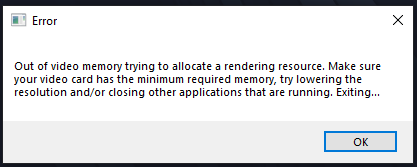
The mistake I made for years was flailing. A crash would hit and I would start flipping settings hoping one stuck. Now I read first. The engine almost always writes a reason in the console or log right before it dies, and that one line narrows six possible causes down to one. A memory message points at VRAM or RAM. A driver message points at the GPU driver. A frame that dies at the exact same point every run points at corrupt data on that frame. Spend two minutes there and you save yourself an afternoon of guessing.
The deep dives
Each of these has a full write-up in this cluster, so I will keep the summaries short.
- Crashing overnight and losing frames. Recovery and prevention live in my overnight render recovery system.
- Blender crashing mid-render. Seven specific fixes are in the Blender crash guide.
- RAM maxing out and freezing. Covered in the system RAM freeze guide.
- CUDA out of memory. The VRAM side is in the out of memory guide.
Make crashes cheap: survivable rendering
Fixing the cause is only half the work. The other half is making sure the next crash, and there will be one, costs you minutes instead of the whole night. Render to an image sequence rather than a single movie file, so a crash at frame 480 still hands you frames 1 to 479. Switch on the option that skips frames already written to disk, so a relaunch resumes instead of starting over. Split long jobs into smaller batches. None of this stops a crash from happening, but together they decide whether you wake up to a setback or a disaster.
When the fix is a more stable machine, or more of one
Some crashes are really a hardware ceiling. A scene that needs more VRAM than your card holds, or more RAM than your system has, will keep dying until you give it more headroom. Buying that headroom for one heavy job rarely makes sense, so renting it does. This is where a render farm comes in, and the right kind depends on why you were crashing.
I should be upfront before this table: this site is affiliated with iRender, so weigh my view accordingly. I have kept the rivals’ real advantages in, including the ones where they clearly beat iRender, because a comparison that hides them is worth nothing to you. Take the recommendation knowing where I stand.
| Render farm | Model | Best when your crashes came from | Where it bites |
|---|---|---|---|
| RebusFarm | SaaS | Setup errors and missing assets; its scene checker catches them pre-render | Older interface, mid to high pricing |
| GarageFarm | SaaS | You want a hands-off submit and no machine to manage | Unusual plugins or versions can fail |
| Fox Renderfarm | SaaS | Long batches where cost matters most | Support and queues uneven at peak |
| SheepIt | Free | Blender side projects with no deadline | Blender only, queue waits |
| iRender | IaaS | VRAM or RAM ceilings; you need a bigger machine you fully control | You set it up, and pay while the server is on |
RebusFarm earns a real mention here, because a fair share of crashes are setup problems, and its scene checker flags missing textures and broken paths before you waste a render on them. For the crashes that are simply a hardware ceiling, an IaaS server like iRender gives you, as of mid-2026, a 24GB RTX 4090 and 256GB of system RAM to fit what was failing. Two caveats with that route: you configure the machine yourself the first time, and the meter runs from boot to shutdown, so a server you forget to close still bills.
iRender offers, with the fine print: new accounts get a 100% first-deposit bonus (one time), and the Credit Back scheme returns a percentage of spend, weighted toward weekends, which iRender markets as reducing render costs “up to 60%.” Read that 60% as a best case, where the one-time deposit bonus and a discounted weekend render land on the same spend, not as an everyday rate. After the first top-up, plan around the standing Credit Back alone. (Promo tiers change; confirm current rates on iRender’s pricing and promotion pages before quoting them.)
FAQ
Why does my render keep crashing?
Usually one of five causes: running out of VRAM or system RAM, a graphics driver fault, a corrupt scene or cache, a software or plugin version mismatch, or an unstable machine under heat or power stress. Read the log at the moment it crashed, since the engine almost always names the reason, then fix that specific cause.
How do I stop losing my whole render when it crashes?
Render to an image sequence instead of a single movie file, so a crash keeps every frame already written. Turn on the option to skip frames that already exist on disk, so you resume instead of restarting. Render long jobs in smaller batches. These habits turn a crash into a minor delay rather than a lost night.
Does a render farm fix crashing?
It helps when the crash came from a hardware ceiling, like needing more VRAM or RAM than your machine has, since a rented server gives you more headroom. It does not fix a crash caused by a corrupt scene or a version mismatch, which will follow your file to the farm. Fix data and version problems first, then use a farm for capacity.
When a crash is really your machine running out of room, a rented server with a 24GB card and 256GB of RAM fits the scene that kept dying. iRender frames its IaaS model with the line “your renders, your rules”, meaning the machine runs your exact setup. New accounts get a one-time 100% first-deposit bonus. See iRender GPU servers
See more: Is My Old GPU Holding Back My Animation Career? Upgrade vs Rent
Image source: figandlight

COMMENTS